
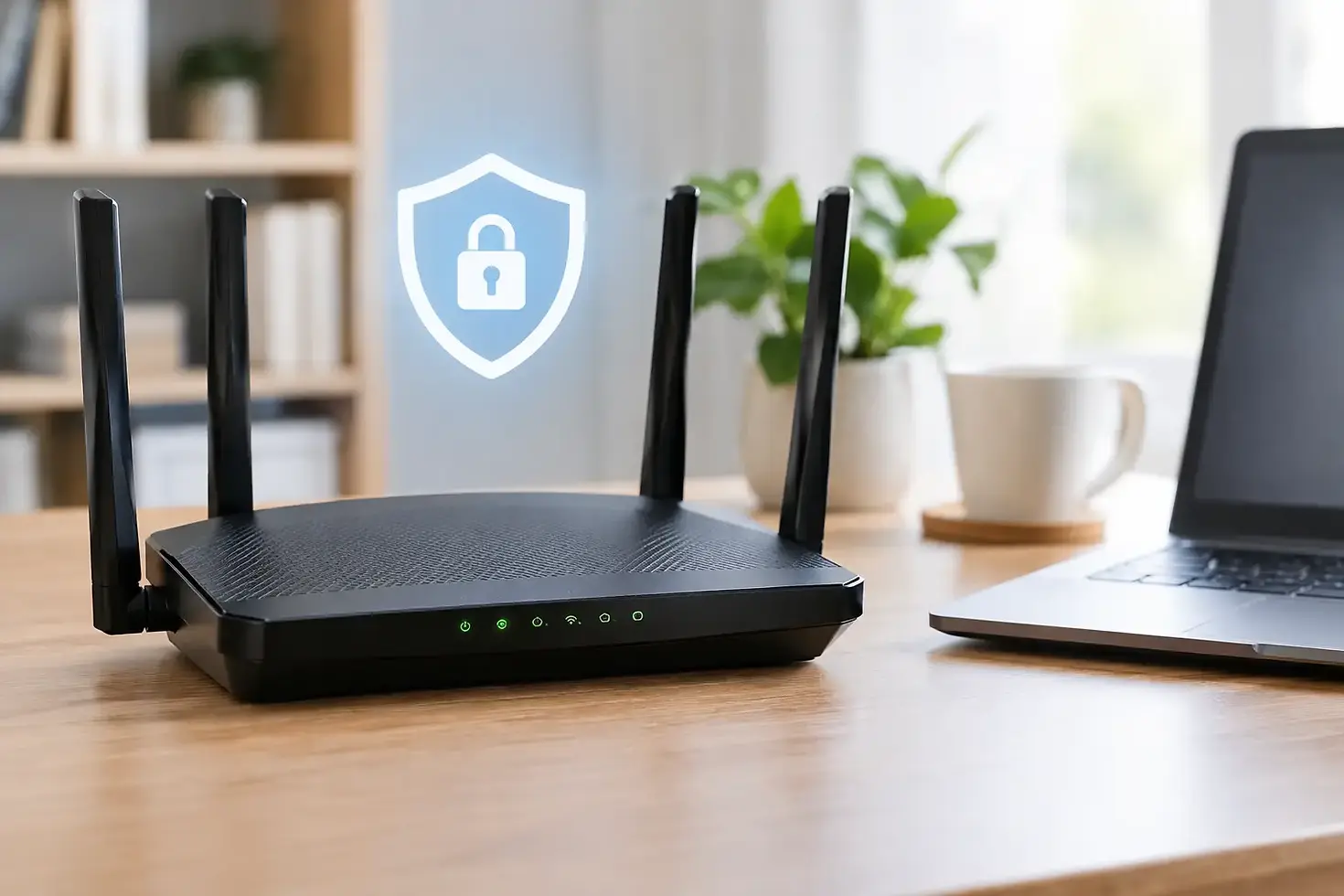
Router Security: 8 Settings Worth Checking

A slow connection is frustrating. A compromised router is worse because it can quietly affect every phone, computer, TV, camera, printer, and smart device connected to it. Good router security is not about turning your home or office into a fortress. It is about closing the common gaps that let strangers, malware, or unwanted devices onto your network.
For San Diego homeowners, remote workers, and small-business owners, the router often gets installed once and forgotten. That is understandable, but it is also why routers become an easy target. A few practical checks can make a meaningful difference without making your technology harder to use.
Why Router Security Deserves Attention
Your router is the front door to your internet connection. It assigns devices to your network, sends traffic where it needs to go, and provides Wi-Fi access. If someone gets into its settings, they may be able to change your DNS service, watch for vulnerable devices, use your internet connection, or lock you out of your own network.
The risk is not limited to computers. Smart TVs, doorbells, cameras, voice assistants, game consoles, thermostats, and printers all rely on the same network. One outdated or poorly configured device can create headaches far beyond a single laptop.
This does not mean every Wi-Fi issue is a security problem. Dead zones, interference, and an aging router can all cause poor performance. But security and reliability often go together: a current router with sensible settings is easier to manage and less likely to cause surprise outages.
1. Change the Router Administrator Password
Your Wi-Fi password and your router administrator password are not always the same thing. The administrator password protects the router's settings page, usually accessed through an app or a local web address. Many routers arrive with a default login that is easy to find online.
Change it to a long, unique password that you do not use for email, banking, or any other account. A password manager makes this much easier, especially if you support a household or manage several business devices.
If your router offers two-factor authentication for its management app or cloud account, turn it on. It adds a step when you sign in, but it can prevent a stolen password from becoming a full network takeover.
2. Use WPA3 When Your Devices Support It
Wi-Fi encryption determines how your devices prove they belong on your network. In the router's wireless settings, look for WPA3-Personal. It is the preferred option for most current home and small-office equipment.
Older devices may not connect to WPA3-only networks. In that case, WPA2/WPA3 mixed mode is usually a reasonable compromise. Avoid old options such as WEP or WPA whenever possible. They are outdated and should not be used just to accommodate a device that may itself be due for replacement.
Your Wi-Fi password should be long and memorable enough to enter on a TV or printer, but difficult to guess. A phrase made of several unrelated words works well. Do not use your address, family name, business name, or a simple sequence such as 12345678.
3. Keep Router Firmware Updated
Router manufacturers release firmware updates to correct bugs, improve reliability, and fix known security issues. Unlike phone and computer updates, these can be easy to overlook because the router usually works in the background.
Check whether your router supports automatic firmware updates and enable them if available. If it does not, set a reminder to check a few times a year. Before manually updating, confirm the exact router model and follow the manufacturer's instructions carefully. Interrupting power during an update can cause problems.
If updates have stopped for your router, that is worth taking seriously. A router can still provide internet access long after its security support has ended. For a home office handling client files, financial records, or remote access, replacing unsupported network equipment is often the safer and less stressful choice.
4. Turn Off Features You Do Not Use
Convenience features can create unnecessary exposure when they are left enabled. One of the first settings to review is remote administration. Unless you have a clear reason to manage the router from outside your network, turn remote administration off.
Also disable WPS, or Wi-Fi Protected Setup, if it is enabled. WPS was designed to make connecting devices easier, but it is rarely needed now and can introduce avoidable risk. Use your Wi-Fi password or the router's approved setup method instead.
UPnP is another setting that deserves a look. It can help gaming consoles, video calls, and certain smart-home devices work with fewer setup steps, but it can also let devices open network ports automatically. It depends on your equipment and needs. For many households, leaving it on may be practical. For a small business or a network with sensitive systems, review which devices truly need it.
5. Put Guests and Smart Devices on Their Own Network
A guest Wi-Fi network gives visitors internet access without giving them access to your computers, storage devices, or printers. Use a separate guest password and turn off any setting that allows guest devices to communicate with your main local network.
The same idea can help with smart-home equipment. If your router supports an Internet of Things, guest, or isolated network, placing cameras, smart plugs, and other connected devices there can limit the damage if one device is compromised.
There is a trade-off. A phone on your primary network may not be able to directly control a smart TV or printer on an isolated network without additional setup. That is why the right approach depends on how your devices are used. The goal is sensible separation, not creating a system that nobody in the household can operate.
6. Review Connected Devices Regularly
Most router apps show a list of devices connected to your network. Take a few minutes to scan it. You may see unfamiliar names, but do not assume every unknown entry is an intruder. Devices often identify themselves poorly, and a phone may appear under a manufacturer name instead of a person's name.
Start by comparing the list with devices you recognize: computers, phones, tablets, streaming boxes, speakers, cameras, printers, and appliances. Rename devices in the router app when possible. It makes future troubleshooting much faster.
If you find a device you cannot identify, pause or block it, then change the Wi-Fi password. Reconnect only the devices you trust. This is inconvenient, but it is usually the cleanest response if you suspect someone has joined your network without permission.
7. Protect the Modem and the Router Account Too
Some internet providers supply a combination modem and router. Others provide a modem while you use your own Wi-Fi router. Know which equipment you have and who manages it, because there may be separate accounts, apps, and passwords involved.
Do not overlook the account connected to your router's app. Use a unique password there, enable two-factor authentication if offered, and make sure account recovery information is current. Someone who can access the cloud management account may be able to change the network even if they are not standing near your Wi-Fi signal.
For small businesses, document who has administrator access. When employees or outside vendors leave, remove access promptly. Shared logins may seem easier until a problem occurs and nobody knows who changed a setting.
8. Know When a Reset Is the Right Move
A factory reset can help if you have lost access to the router, inherited equipment with unknown settings, or believe the configuration has been altered. It is not a casual first step. A reset erases the network name, passwords, internet settings, port rules, and device customizations.
Before resetting, save configuration details if your router allows it, and make sure you have your internet provider login information if required. Afterward, install the latest firmware, create a new administrator password, set a new Wi-Fi password, and reconnect devices one at a time.
If this sounds like more than you want to handle, that is a reasonable call. Router settings can affect remote work, security cameras, printers, smart-home systems, and business operations. iMobileTech can come to you, assess the network, secure the equipment, and make sure your devices still work the way they should. Call 619.THE.PRO2 when you want a knowledgeable local technician to take the problem off your plate.
A secure router should not be something you worry about every day. Once the right settings are in place and updates are handled, you can get back to using your technology with more confidence and fewer surprises.


Comments